
 Posted by Monalisa
 Can AI Really Retouch Your Photos? An Honest Photographer Review
For photographers, retouching is personal. It’s detailed and creative heavy work. So the idea that software could step into that space feels equally intriguing and concerning.
Ernesto’s approach to Aftershoot’s new AI retouching tool is so refreshing. He opened the beta for the first time, imported real client portraits, and gave us a “what’s it about” in real time. If AI were going to mess up, we’d see it immediately.
What happened instead was something more interesting: the AI handled the foundational cleanup, such as blemishes, stray hairs, shine, and small distractions, with a level of subtlety that photographers spend hours trying to replicate manually.
So the real question isn’t “Can AI retouch my photos?” It’s: “Which parts of retouching should still be mine and which parts am I finally ready to delegate?”
This article walks through that shift, anchored in Ernesto’s first-time test and framed around how modern portrait workflows actually work. Let’s get into it.
Can AI Retouch Photos? The Short Answer
The short answer is YES! AI can retouch photos extremely well for the foundational cleanup work: blemishes, stray hairs, shine reduction, smoothing, and tone refinement.
What it can’t replace is creative retouching, stylistic choices, and the nuanced adjustments professional retouchers do by hand.
TL;DR: Should you use AI retouching?
| Photographer Type | Should You Use AI Retouching? | Why |
| Volume portrait / e-comm | Yes | Huge consistency + time ROI |
| Beauty/editorial retouchers | Yes | Faster delivery for galleries & sneak peeks |
| Beauty / editorial retouchers | Maybe | Use AI for foundations, polish manually |
| High-end commercial retouchers | Partially | AI for cleanup, creative work stays manual |
| Hobbyists | Optional | Good for convenience, not required |
Photographer tries AI Retouching for the first time
“Remember, this is my first time seeing this with you guys… so this is going to be interesting.”
Once the images loaded, something subtle but important happened: instead of feeling like he had to adapt to the software, the software adapted to the way photographers naturally work. Loop view, portrait sliders, touch-up categories that make sense (blemishes, wrinkles, hair, face brightness, patch tool), nothing hidden behind jargon or 12 nested menus.
AI retouching isn’t about replacing the craft. It’s about seeing whether AI can take over the repetitive clean-up work we never charge enough for, while keeping the creative decisions in your hands.
Now let’s find out what he actually saw.
What AI can retouch tell (Real test results)
Every retoucher has the same instinct when testing new tools: push the dial to 100% and see how fast the image falls apart. Because most AI or “automatic” retouching tools collapse immediately—waxy skin, erased pores, uncanny color shifts.
When Ernesto pushed the retouching sliders expecting over-smoothed, plastic skin, the AI delivered photos that looked natural, controlled, and closer to what photographers actually deliver to clients.
“It doesn’t look that bad. I thought it would look much more plasticky.”
Blemishes & Acne
The AI lifted minor acne, freckles, and small inconsistencies without flattening the face. Even at full power, it didn’t cross into the “FaceTune disaster zone.” For real-world sessions like seniors, branding, or quick editorial work, this alone can save minutes per image.
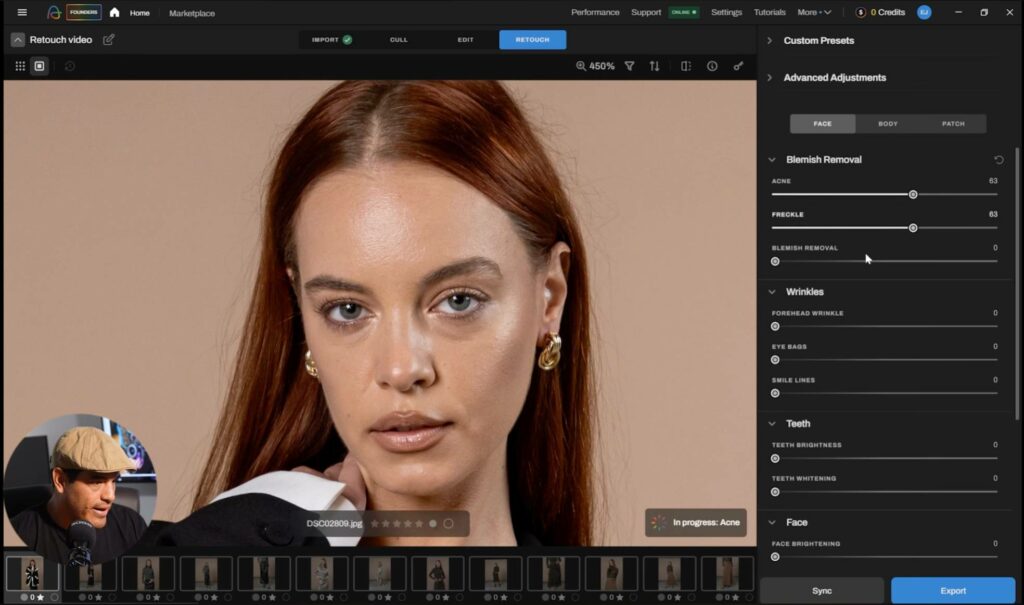
Wrinkles & Eye Bags
When he adjusted eye bags and smile lines, the changes were gentle shifts. The gradients stayed natural and the colors didn’t posterize or shift.
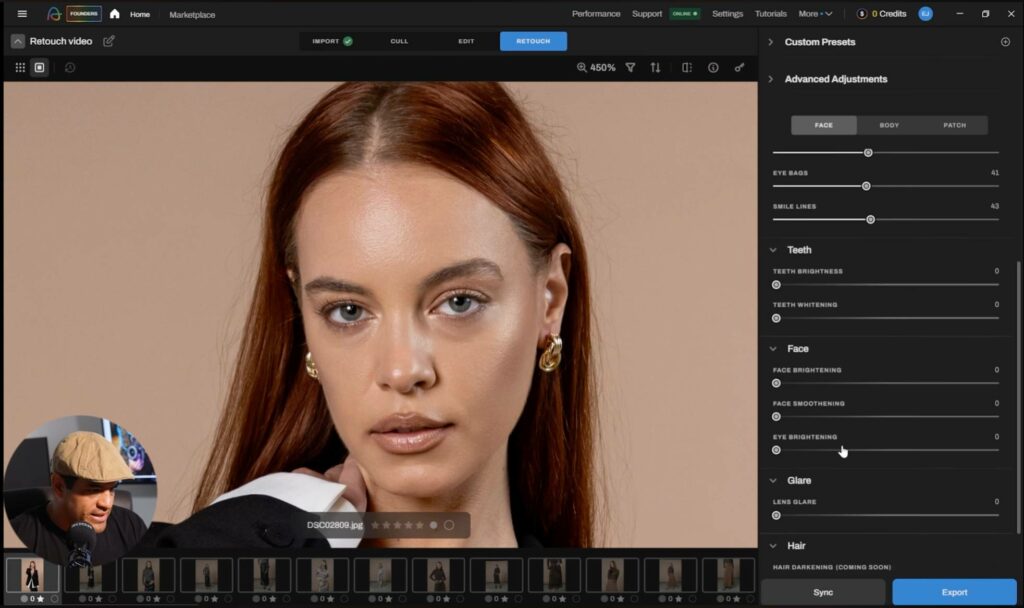
Face smoothing
When he hit the face-smoothing slider, Ernesto noticed something interesting:
“The gradient from one color to the other isn’t harsh.”
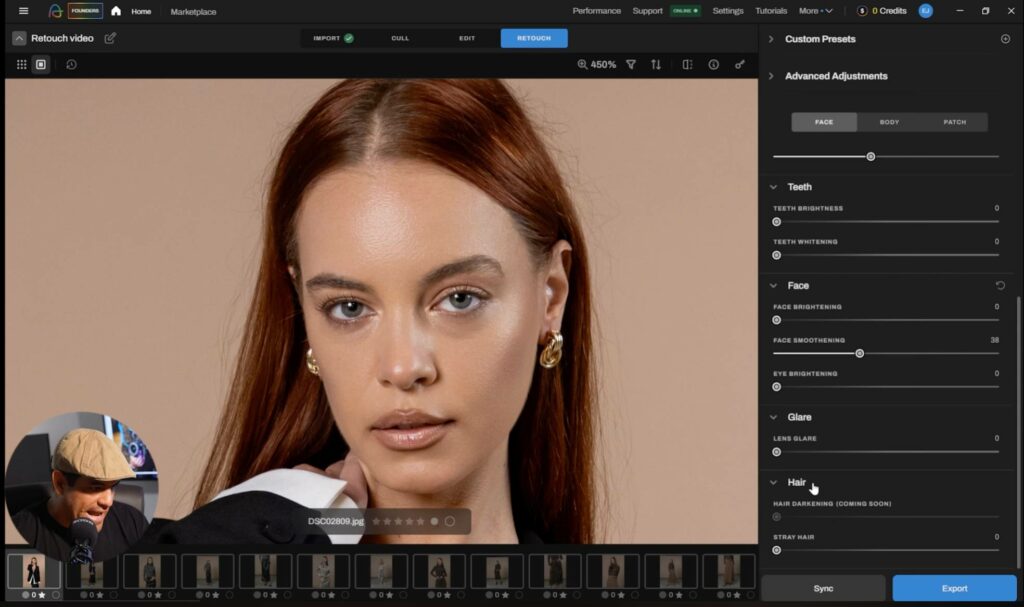
This is the type of base-level cleanup retouchers do before the creative work begins. Even when it was pushed past what he'd ever deliver to a client, the image still retained believable luminance and texture.
Stray Hairs
Stray hair cleanup is the moment most AI retouching tools fail, but here, it’s where Ernesto stopped testing and simply said what every photographer thinks when something saves real time: “Oh, nice.”
They’re honestly tedious to remove in Photoshop, and they multiply the more you zoom in. So when Ernesto reached the “Stray Hairs” slider, he wasn’t expecting anything impressive. This was supposed to be the breaking point.
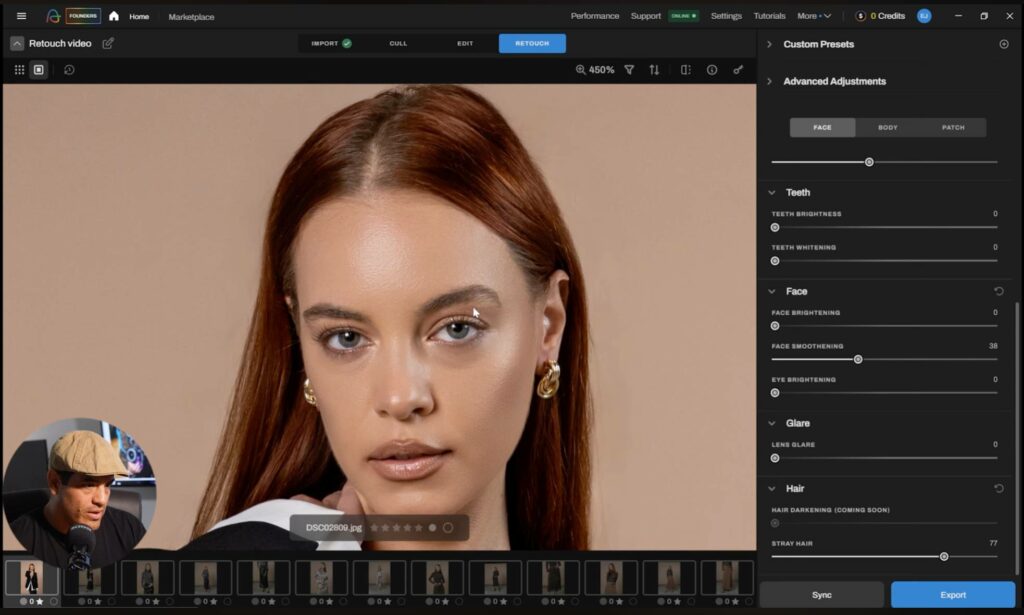
His reaction says everything:
“That’s a nice result.”
“The stray hairs are gone.”
AI removed it in seconds.
So..
Can AI handle the parts of retouching that are repetitive, boring, and non-creative?
Here, the answer is hell yes!
Read also: Manual vs Aftershoot’s AI Retouching: Which Workflow Wins?
The Business case for AI Retouching
Fixing one portrait with AI is impressive. Syncing those fixes across an entire session is where photographers start gaining hours back!
After seeing the stray hair removal work, Ernesto does what any volume portrait photographer would do next: He selects the rest of the shoot and tries to batch everything.
This is the turning point of the video. Up until now, the AI has been helpful—a time-saver, a nice-to-have. Batch retouching capabilities suddenly make it a must-have tool to streamline your post-production workflow
Doing the same cleanup across each image, blemishes, stray hairs, mild smoothing, tone consistency is the real burden, not the edits themselves.
“I can select all these photos and sync the retouching into all of them… that’s way easier than manually retouching photo by photo.”
Interestingly, most AI tools save time by showing you a preview and applying real changes only on export. That means you’re always guessing until the end. But with Aftershoot, you can see the changes in real time.
“I kind of like having the full resolution because I can actually see what the changes will look like in real time… When you work with lower resolutions, you don’t know until you export.”
How much time can you save per session
A typical photographer spends:
5–10 minutes retouching a single portrait and 20–40 delivered images per session
That equals: 100–400 minutes (1.5–6.5 hours) of retouching per client.
With AI foundations + batch retouching:
- Retouch 1 image: 3–5 minutes
- Sync to the rest: seconds
- Spot-check: 10–15 minutes
Total AI retouching workflow: 15–20 minutes instead of 1.5–6.5 hours
And in case you need to add your finishing touches, you can export it to Ps or Lr. That could take another 10 mins.
Translate that time into earnings
Let’s look at a realistic example. A typical portrait session:
- Client pays: $350
- You deliver: 25 images
- Manual retouching: 3 hours
- AI foundation + batch: 20 minutes
Your effective hourly rate:
| Workflow | Hours Spent | Earnings | Effective Hourly Rate |
| Manual retouching | 3 hours | $350 | $116/hour |
| AI retouching | 20 min | $350 | $1,050/hour |
That’s nearly a 9× increase in effective hourly rate without raising prices.
Read also: 9 Best Skin Retouching Software for Photographers in 2025 (Tested & Compared)
How to use a hybrid workflow with AI Retouching
Portrait photographers are blending manual and AI retouching to maintain creative control while eliminating the hours of cleanup work that slow down the process. This hybrid workflow gives you more time to do the parts of retouching that only you can do.
This is how the workflow works:
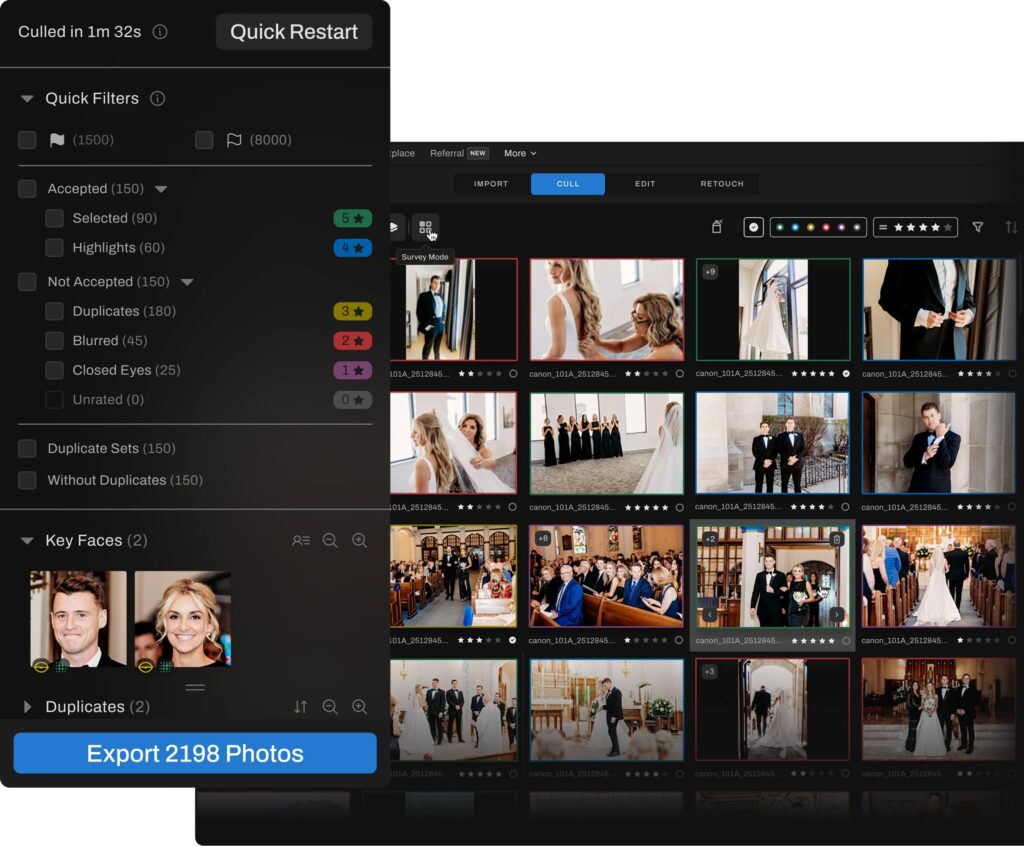
Step 1: Cull your session in Aftershoot
Import your RAWs into Aftershoot. Run AI culling to flag blinks, misfocus, and near-duplicates, and pick the strongest expressions and poses. Review and tweak the AI selections, so you’re only moving forward with real contenders.
Step 2: Apply your base edits
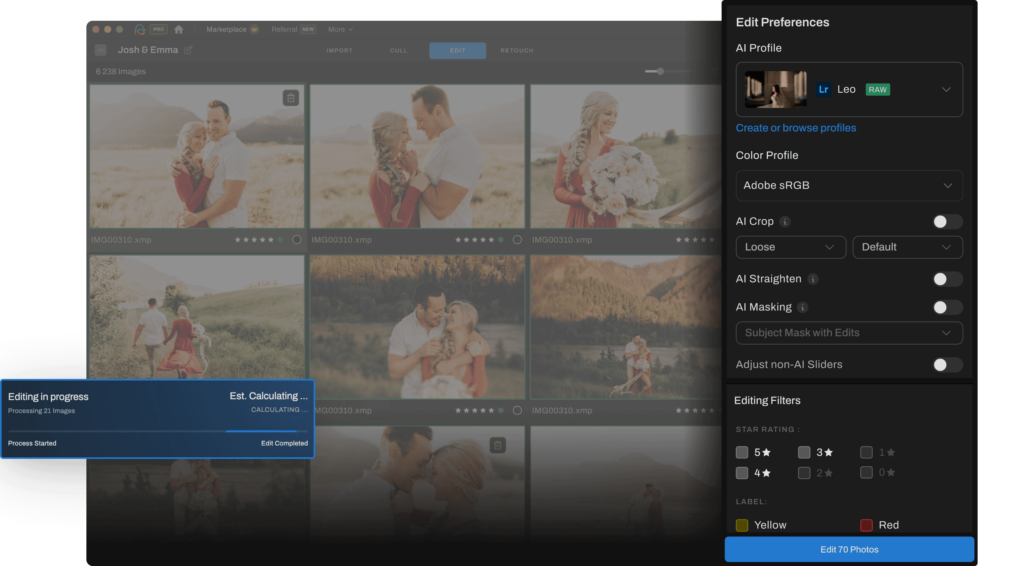
Once you’ve got your keepers, you give them your look. You’ve got two main options:
- If you use Aftershoot Edits or Instant AI profiles, then start by applying your AI editing profile to your photos
- Or send the culled keepers into Lightroom, do your color work there, and sync across the set.
Step 3: Export final JPEGs for retouching
Right now, Aftershoot Retouch works on JPEGs only. So once your base edits are locked in:
- Export your selected portraits as high-resolution JPEGs from Lightroom
- Keep them in a separate “_Retouch” folder so you don’t mix them up with the original exports.
Step 4: Create a Retouch album and dial in the settings
Go to the Retouch tab on Aftershoot, pick a representative portrait (same lighting, same model, similar framing), switch to loop/single-image view, and start adjusting the sliders.
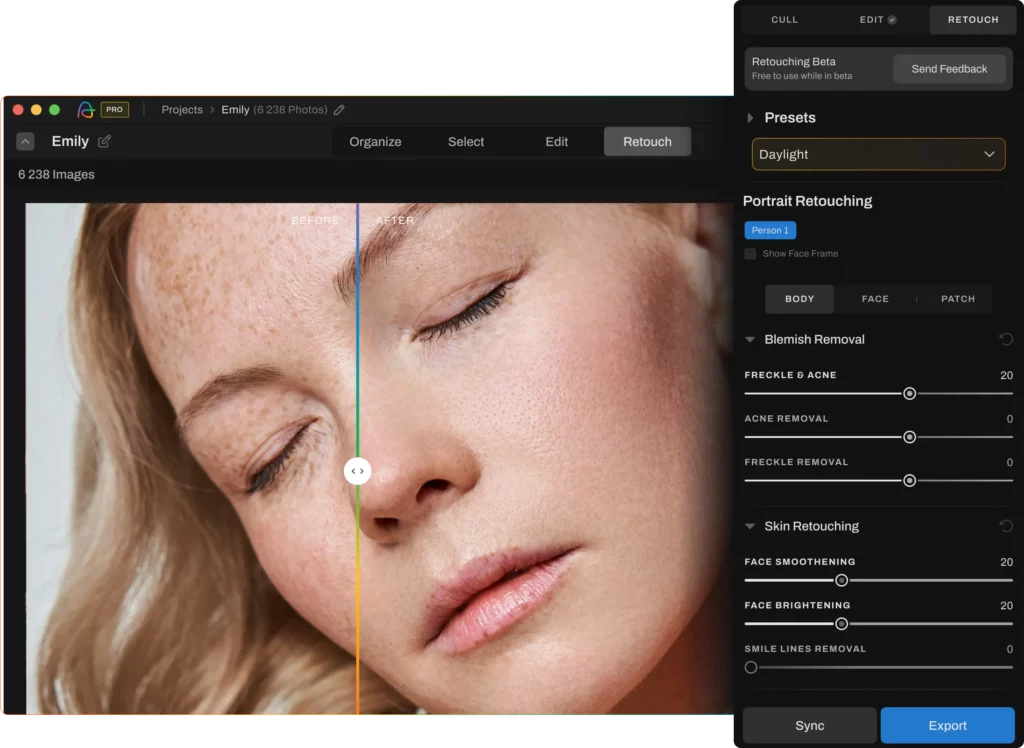
Pro tip: Push sliders to see the extreme and then back them down to a level you’d actually deliver to a client
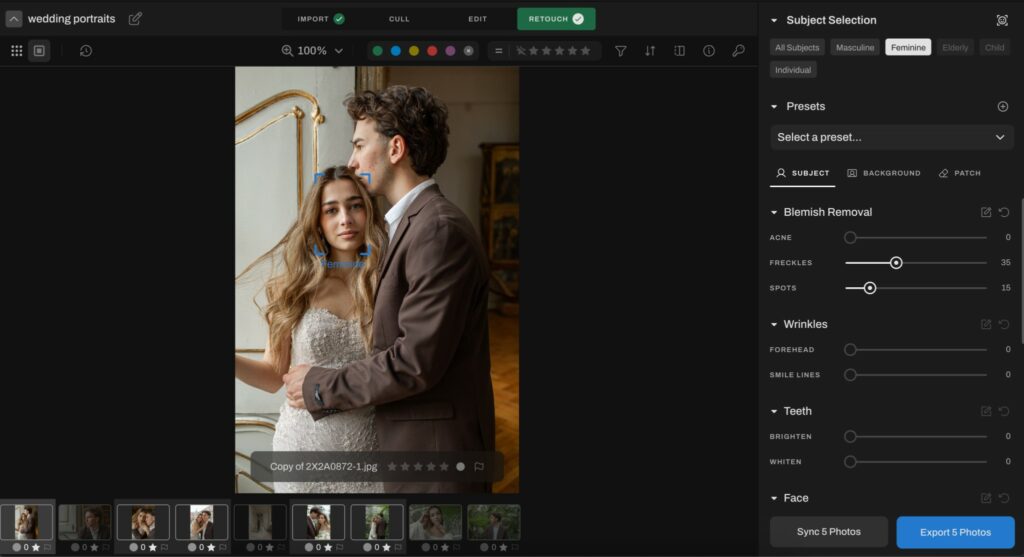
Step 5: Sync retouch settings
With your hero image selected, select the rest of the portraits from the same setup. Use Aftershoot’s sync option in Retouch to apply all your chosen sliders (face, hair, patch, etc.) to the entire batch.
Step 6: Spot and tweak
Hybrid means you’re still the final gatekeeper. Flip through the batch:
- Check for over-smoothing on certain angles
- Make sure stray hair removal didn’t miss anything critical
- Use the patch tool on any stubborn distractions or backgrounds
If a specific image needs a different touch, adjust the sliders locally for that frame. For your absolute favorites, such as hero images, prints,and covers, you can still pull them into Photoshop for extra dodge & burn or do any pixel-level work that’s required.
Step 7: Export and Deliver
Once the batch looks solid, export your retouched JPEGs from Aftershoot.
What AI still can’t do (yet)
Even with all the impressive cleanup work AI can handle, it still has clear limits, and those limits matter if you’re delivering portraits professionally. The biggest gap is style. AI can smooth skin and refine tones, but it can’t interpret your creative intent. It doesn’t know whether your brand leans toward textured editorial looks or soft beauty tones, and it won’t decide how far is too far when retouching a specific client.
Tasks like micro dodge-and-burn, sculpting facial structure, rebuilding texture, or color-correcting across channels still require human technique. AI gets you through the tedious 70%, but the final 30%, the part clients are paying for, is still in your hands.
Those are artistic choices that make you, you.
As Ernesto pointed out, Aftershoot’s retouching works only on JPEGs right now. That means your RAW edits and color grading must be finalized before you enter the retouch stage. And even once you’re inside the tool, edge cases still need reviewing. AI doesn’t always catch overlapping flyaways, complicated backlighting, patterned clothing, or tricky reflective surfaces.
Most importantly, AI can’t understand people. It has no intuition about which birthmarks clients love, which scars hold meaning, or which features they’re sensitive about. It can’t decide what to keep, soften, or remove in a way that respects identity. That still requires a human making thoughtful, context-aware calls.
So while AI can absolutely accelerate portrait cleanup, you still need to:
- Spot-check every image to ensure it meets your quality bar
- Fine-tune the hero shots manually where emotion and detail matter most
- Override AI decisions when they clash with your artistic style or client preferences
Why Photographers Are Moving Toward Hybrid AI Retouching
A hybrid workflow means that blemishes, stray hairs, subtle shadows, background wrinkles—all the tiny fixes clients expect but never pay extra for can be automated in minutes. What’s left is the part of retouching photographers actually care about: shaping light, refining skin texture, guiding mood, and giving a portrait its emotional weight.
It’s a workflow that respects both the craft and the realities of running a photography business. AI establishes a consistent baseline across a full session, while you apply the finishing decisions that define your style. It reduces the mental fatigue of repetitive corrections, speeds up delivery timelines that clients increasingly expect, and frees up your time for the images that deserve deeper attention.
That’s why the shift is happening quietly but quickly: photographers who adopt hybrid retouching workflows are delivering more consistent results, and preserving the artistry that makes their portraits worth hiring for in the first place.
If you’re curious how AI can shift your workflow, test it on your portraits today. Try Aftershoot AI retouching for 30 days for free!